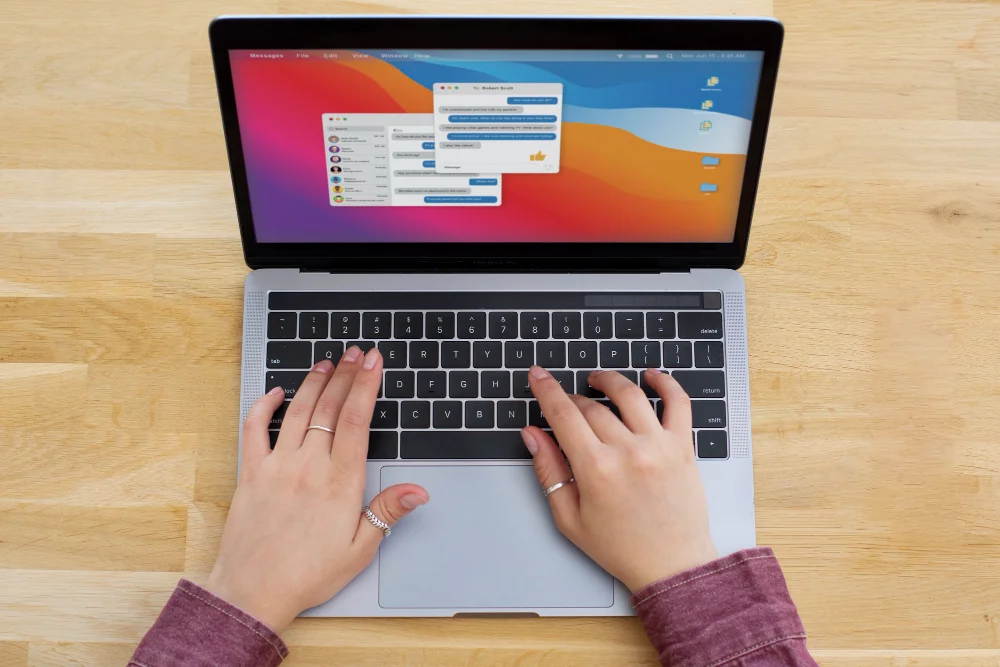
In today’s digital age, understanding how to effectively capture and share what you see on your screen is crucial. If you’re wondering how do you take a screenshot on a Chromebook, you’re in the right place. This comprehensive guide will walk you through various methods for capturing screenshots on your Chromebook, from using simple keyboard shortcuts to exploring advanced tools and extensions.
Why Screenshots Are Essential
Screenshots serve a multitude of purposes, whether you’re a student capturing lecture slides, an educator preparing teaching materials, or a professional needing to document information. They are an indispensable part of digital communication, enabling users to share visual information quickly and efficiently.
See also Deepseekplay com — Complete Guide, Features, Safety, and How It Works
Methods to Take Screenshots on a Chromebook
Using Keyboard Shortcuts
One of the fastest and easiest ways to capture your screen on a Chromebook is through keyboard shortcuts. Here’s a breakdown:
- Full Screenshot: Press Ctrl + Show Windows key (the key with a rectangle and two lines next to it). This captures the entire screen and saves it directly to your Downloads folder.
- Partial Screenshot: Press Ctrl + Shift + Show Windows key. Your cursor will change to a crosshair. Click and drag your cursor to select the area you want to capture, then release the mouse button to take the screenshot.
Using the Power and Volume Buttons
If you’re using a convertible Chromebook in tablet mode, you can take screenshots without the keyboard:
- Press the Power button and the Volume downs button at the same time. This will capture the entire screen.
Using a Stylus
For Chromebooks that support a stylus, you can take screenshots by:
- Tapping the screen with the stylus and selecting Capture Region from the menu. This allows you to draw a box around the area you want to capture.
Saving and Accessing Screenshots
Once you’ve captured your screenshot, it’s automatically saved in the Downloads folder. You can also move it to Google Drive for cloud storage, making it accessible from any device:
- Open the Files app.
- Locate your screenshot in the Downloads folder.
- Drag and drop the file into your Google Drive folder.
Editing Screenshots
Using Built-in Tools
Chromebooks offer basic editing tools for quick adjustments:
- Open the screenshot in the built-in image viewer.
- Use the editing options to crop, rotate, or annotate the image.
Recommended Third-party Apps
For more advanced editing, consider using third-party apps such as:
- Lightshot: Offers advanced editing features and easy sharing options.
- Awesome Screenshot: Provides robust annotation tools and seamless integration with Chrome.
Troubleshooting Common Issues
While capturing screenshots on a Chromebook is generally straightforward, you may encounter some issues:
- Screenshots Not Saving: Ensure there’s enough storage space and check the Downloads folder settings.
- Keyboard Shortcuts Not Working: Restart your Chromebook or check if the keys are functioning properly.
Alternative Tools and Extensions
Several Chrome extensions can enhance your screenshot-taking capabilities:
- Nimbus Screenshot & Screen Video Recorder: Offers flexible screen capture options along with powerful editing tools.
- Fireshot: Allows full-page screenshots and provides various saving formats.
Comparing Built-in vs. Third-party Screenshot Tools
| Feature | Built-in Tools | Third-party Apps |
|---|---|---|
| Ease of Use | High | Moderate |
| Editing Capabilities | Basic | Advanced |
| Integration with Other Tools | Limited | Extensive |
| Customization | Minimal | High |
Using Screenshots for Educational Purposes
Screenshots play a vital role in education, especially in remote learning environments. Educators can use screenshots to create tutorials, demonstrate software usage, and highlight important information in lessons.
Optimizing Screenshots for Presentations
For professionals, ensuring that screenshots are clear and properly formatted is crucial for presentations. Consider the following tips:
- Ensure the resolution is high enough to prevent pixelation.
- Use editing tools to highlight key areas.
- Incorporate annotations to provide context.
FAQs
How do I take a partial screenshot on a Chromebook? Use the keyboard shortcut Ctrl + Shift + Show Windows key to select the desired area.
Why can’t I find my Chromebook screenshots? Check the Downloads folder or ensure sufficient storage space is available.
What are the best extensions for Chromebook screenshots? Nimbus and Fireshot are highly recommended for their features and ease of use.
How do I edit screenshots on a Chromebook? Utilize the built-in viewer’s basic editing tools or opt for third-party apps like Lightshot for more options.
Can I take screenshots in tablet mode? Yes, use the Power and Volume down buttons simultaneously.
How do I save screenshots directly to Google Drive? Manually move files from the Downloads folder to Google Drive via the Files app.
Are there accessibility features for taking screenshots? Yes, Chrome OS includes options to assist users with disabilities in capturing screenshots.
Conclusion
Understanding how to take a screenshot on a Chromebook is an essential skill for students, educators, and professionals alike. By mastering various methods, from keyboard shortcuts to using third-party tools, you can efficiently capture and utilize screenshots for a variety of purposes. As Chrome OS continues to evolve, staying updated with the latest features and tools will ensure you maximize your Chromebook’s capabilities.
For those seeking a more visual learning experience, consider exploring video tutorials on taking screenshots with your Chromebook. These can provide a step-by-step guide and are especially beneficial for visual learners.